Laptop spec sheets are written for comparison, not comprehension. Here is what each line actually governs, and how much it matters depending on what you do.
The processor
The processor determines general responsiveness — how quickly things open, how well the machine copes with a lot of browser tabs, how fast it handles heavy work like video encoding or compiling code.
Manufacturers use tiered naming — entry, mid-range, high-end — and a generation number. Two things are worth knowing. First, the tier matters more than the generation for everyday responsiveness: a mid-tier chip from two years ago typically outperforms an entry-tier chip released this year. Second, laptop processors come in low-power and full-power variants, and the same model name can perform very differently depending on which one the manufacturer used and how well the laptop can cool it.
Core count matters for work that can use many cores at once — video rendering, 3D work, running virtual machines, large software builds. For browsing, documents and video calls, clock speed and efficiency matter more than core count.
If you want a real comparison between two specific chips, look up independent benchmark figures rather than the model numbers. The naming schemes are not designed to make cross-brand comparison easy.
RAM
RAM is working space. When you run out, the system starts moving data to storage, which is much slower, and the machine feels sluggish even with a fast processor.
Broadly: 8GB is workable for light use — browsing, documents, video — but is increasingly tight. 16GB is the comfortable general figure and what most people should aim for. 32GB and above is for virtual machines, large datasets, heavy creative work, or many demanding applications open at once.
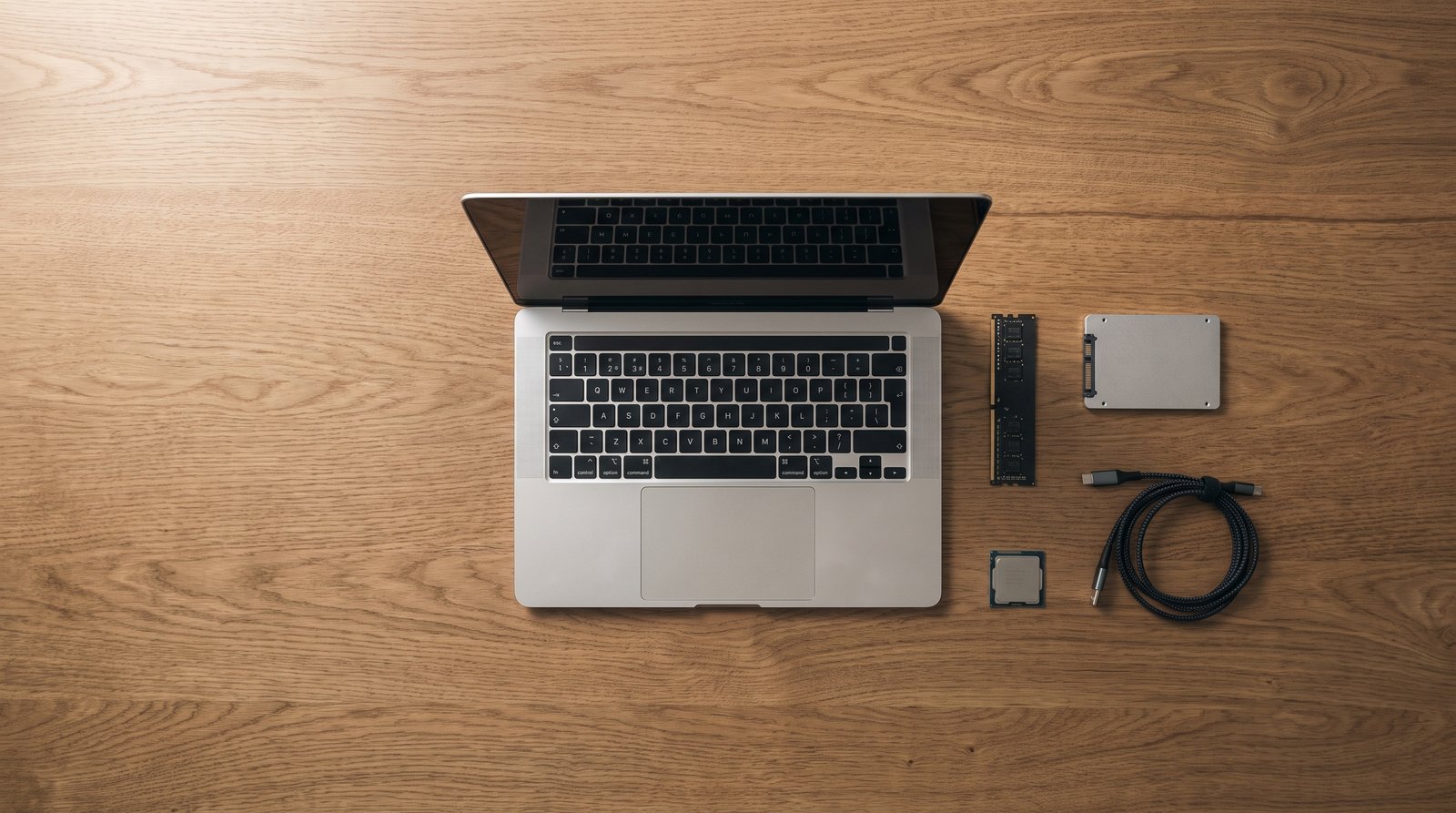
The critical question on a laptop is whether the RAM is soldered to the board or in replaceable slots. Soldered RAM cannot be upgraded, so whatever you buy is permanent. This is common in thin machines. If the RAM is soldered, buy more than you need today, because you cannot change your mind.
Storage
Two things matter: type and capacity.
Type. An SSD is dramatically faster than a mechanical hard drive, and it is the single biggest factor in how quick a computer feels to use. Any new machine should have one. Within SSDs, NVMe drives are faster than older SATA ones, though the difference is far less noticeable than SSD-versus-hard-drive.
Capacity. 256GB fills up faster than people expect once the operating system and applications are installed. 512GB is a sensible baseline; 1TB if you keep photos, video or games locally.
Storage is more often upgradeable than RAM, and external drives are cheap, so this is a less permanent decision than the memory one.
Graphics
Integrated graphics share the processor's silicon and memory. Modern integrated graphics handle video playback, photo editing and light gaming perfectly well.
Discrete graphics are a separate chip with their own memory. You need one for serious gaming, 3D rendering, or GPU-accelerated video and machine learning work. They add cost, weight, heat and fan noise, and they reduce battery life. If you do not need one, not having one is an advantage.
The screen
The screen is what you look at for the entire life of the machine, and it is routinely under-weighted in buying decisions.
- Resolution. 1920x1080 is fine at 13 to 15 inches. Higher resolutions look sharper and cost battery life.
- Panel type. IPS gives accurate colour and wide viewing angles. OLED gives deeper blacks and better contrast. Cheap TN panels wash out when viewed slightly off-centre and are worth avoiding.
- Brightness, measured in nits. Around 250 is dim, 300 is adequate indoors, 400 and above is comfortable near windows or outdoors.
- Finish. Matte reduces reflections; glossy looks more vivid. This is genuinely a personal preference and worth checking in person.
- Refresh rate. 60Hz is standard and fine. Higher rates are smoother, which gamers notice and most other people do not.
Battery life
Treat manufacturer figures as optimistic. They come from controlled tests at low screen brightness with light workloads. Real-world life on a mixed workday is commonly a good deal shorter.
The battery capacity in watt-hours is a more comparable number than the claimed hours. Alongside it, a power-efficient processor and a modest screen resolution do more for real battery life than raw capacity.
The parts people forget
- Ports. Count what you need — USB-A, USB-C, HDMI, headphone, card reader. Thin laptops cut ports, and a dongle for everything gets old quickly. Check whether the laptop charges over USB-C, which is genuinely convenient.
- Keyboard and trackpad. You will use these constantly. Try them if you possibly can.
- Build. Aluminium chassis generally flex less than plastic. Press the middle of the keyboard and the lid — noticeable give suggests a machine that will not age well.
- Weight. If you carry it daily, the difference between 1.3kg and 2kg is real.
- Webcam and microphone, if video calls are a significant part of your work.
How to decide
Start with what the machine has to do, then set your non-negotiables. For most general use, that is: 16GB RAM, a 512GB SSD, a mid-tier current-generation processor, an IPS screen at 300 nits or better, and the ports you actually use. Once those are met, additional spending goes into build quality, screen and weight rather than raw performance — which is where it tends to be most noticeable day to day.